 We have been digitizing cultural heritage objects in North America since the 1970s. The very first Project Gutenberg (1971) saved text from the United States Declaration of Independence into a mainframe file at the University of Illinois. Since then millions of other cultural objects, such as out-of-print books and rare drawings, have been meticulously digitized and saved for posterity. But sadly, much of the items in these digital collections now sit in obscurity, encased in digital amber and available only to those in-the-know.
Over the past two years, the Social Media Lab has been working with the Biodiversity Heritage Library  (BHL), a consortium of natural history and botanical libraries that cooperates to digitize the legacy literature of biodiversity held in their collections, to help make their collection more social, shareable and ultimately more enraging and accessible.
To make this possible, the Social Media Lab has developed and implemented a new social commenting feature powered by Disqus. The new social commenting feature is designed to turn legacy scientific documents on biodiversity in the collection into social objects that can be more easily shared, discovered and discussed in social media. The initiative is part of the transatlantic Mining Biodiversity Project, one of 14 projects funded by the Digging into Data Challenge, an international competition designed to challenge the research community to investigate how new computational techniques can be applied to “big data”—the massive multi-source datasets made possible by modern technology— in humanities and social science research.
Below is a repost of the BHL announcement providing more details about these new social sharing features.
We are pleased to announce that we have added the ability to add comments to books in the BHL website! This new feature will allow you to easily share your discoveries while reading BHL books, highlight interesting content, post your expertise for others to see, engage in conversations about BHL books from directly within BHL, and easily discover all of the great posts from your fellow biodiversity-enthusiasts. We hope that this tool will provide another way for users to engage with our collections and network with others in the BHL community.
The new commenting feature is powered by Disqus, a social commenting tool that allows people to discuss content on websites. Disqus is the commenting tool currently in use on the BHL blog. Disqus works like other social platforms, allowing you to follow people or communities, recommend discussions (which is essentially “liking” or “favoriting” the discussion), and, on your personal Disqus homepage, see the comments and discussions from people and communities you follow, replies to your comments, or discussions recommended by those you follow. You can also share discussions via Twitter and Facebook. Thus, your comments won’t be lost in a vacuum but can be easily discovered and contributed to by other users.
How to Comment on Books in BHL
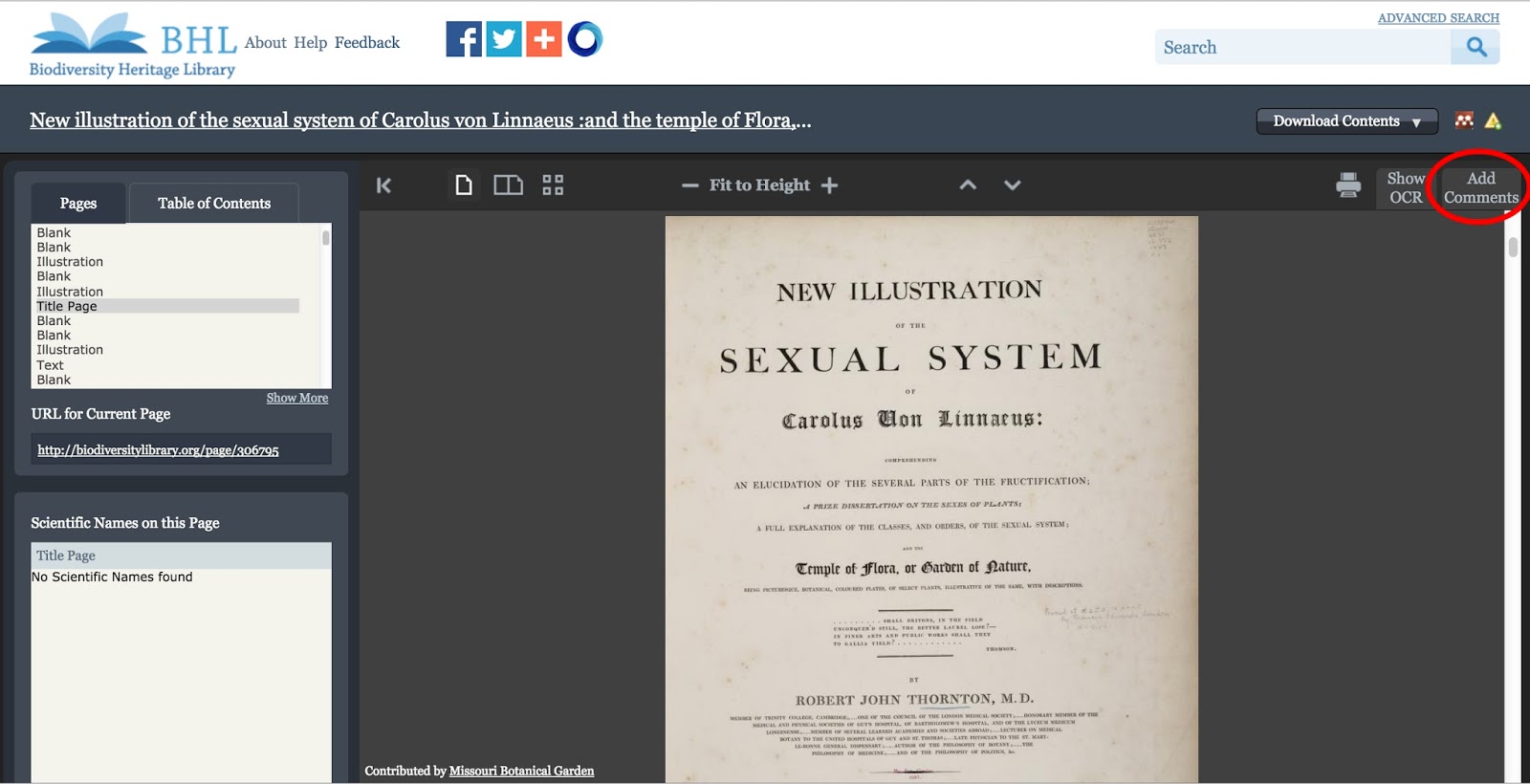
When you are viewing a book in BHL, you will notice that a new tab has been added to the book viewer that reads “Add Comments.” Click on the tab to expand the comment window. Within the expanded window, you can add a comment to the page you are viewing and view the existing comments on that page. Comments are added at the page-level, meaning that as you scroll through the book, the “Add Comments” tab will display only those comments added to the page you are viewing. If you add a new comment, it will be associated with the page you are viewing when you add the comment.
The “Add Comments” tab in the book viewer. Click to expand the window, add a comment to the page, and view existing comments on the page. If there are no existing comments on the page you are viewing, the window will display the message “No Comments Yet. Click Here to Discuss this Page.” Click the message to add a comment to the page.
A page with no comments on it. Click the “Click Here to Discuss this Page” message to add a comment. You must have a Disqus account to comment on a page in BHL. You can login to your Disqus account through the “Login” link in the “Add Comments” tab or by choosing one of the sign-in methods displayed beneath the comment text box.
Ways to login to your Disqus account to post a comment. If you do not have a Disqus account, you can create one from within BHL, or you can sign-up on the Disqus website.
Click on the “Name” box to sign-up for a Disqus account from within BHL. Once you are logged into Disqus, you can type your comment into the comment text box and then click the “Post As [Username]” button to submit your comment. You will then see your comment posted to the page.
Add your comment to the text box and click “Post as [Username]” to submit your comment.
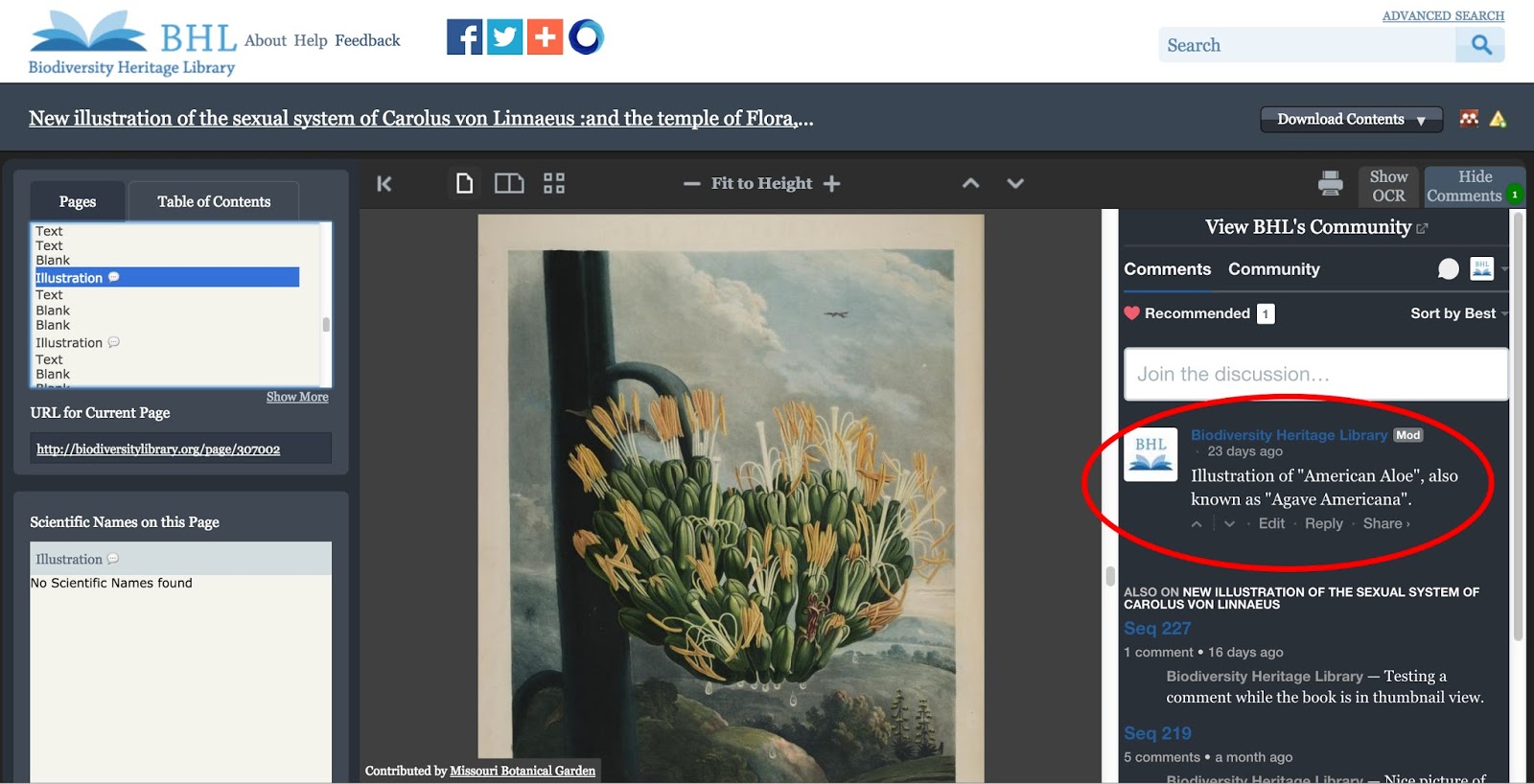
If there are pre-existing comments on the page, expanding the “Add Comments” tab will display the previous comments added to that page as well as provide you with the text box to add your own comment. Posting a comment will add your comment to the list of previously-posted comments.
A page with existing comments.
Beneath each comment, you can click on “Edit” to edit your own comments, “Reply” to reply to an existing comment, or “Share” to share the work on Twitter or Facebook.
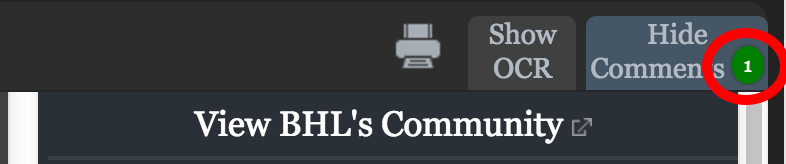
Edit, Reply to, or Share comments from BHL. As comments are added to pages, a count bubble will display on top of the “Add Comments” tab. This bubble will show the number of comments that have been added to the page you are viewing. The count will increase when you add a new comment to a page. This count bubble will not display if there are no comments on the page.
Count of existing comments on the page.
Talk bubble icons will also appear in the “Pages” box next to those pages that have comments on them. Scrolling through the “Pages” window is a quick way to see which pages in the book have comments. When a comment is added to a page for the first time, a new talk bubble icon will display next to that page in the “Pages” window.
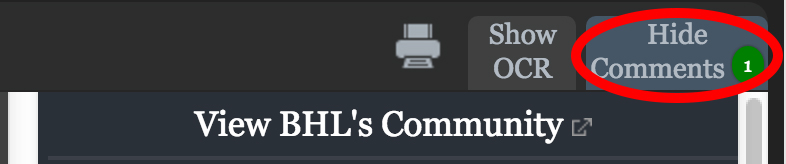
Talk bubble icons displayed next to those pages that have a comment on them. Once you expand the “Add Comments” tab, it will remain open as you scroll through the book, updating as you scroll to display the comments on the current page you are viewing. To close the window, simply click on the tab again, which will read as “Hide Comments” once the window is expanded. This will close the comment window until you expand it again by clicking on the “Add Comments” tab.
Click “Hide Comments” to close the comments window.
View and Follow Comments Added to Books in BHL
You can click on the “View BHL’s Community” link in the comment window to see a list of all of the comments added to any book in BHL. The list is available on the BHL profile page in Disqus.
Click on “View BHL’s Community” to see all of the comments added to any book in BHL. To see all of the comments added to just the book you are currently viewing, click the “Community” link in the comments window.
Click on “Community” to see a list of all of the comments added to just the book you viewing. You can follow BHL on Disqus to receive notification of any new comments added to any book in BHL. Simply click on “Follow” on the BHL Disqus profile page. You will then receive notifications of all new comments added to BHL books via the “Recommended” feed on your Disqus homepage.
Click the “Follow” button on the BHL Disqus profile page to receive notification of any new comments added to any books in BHL.
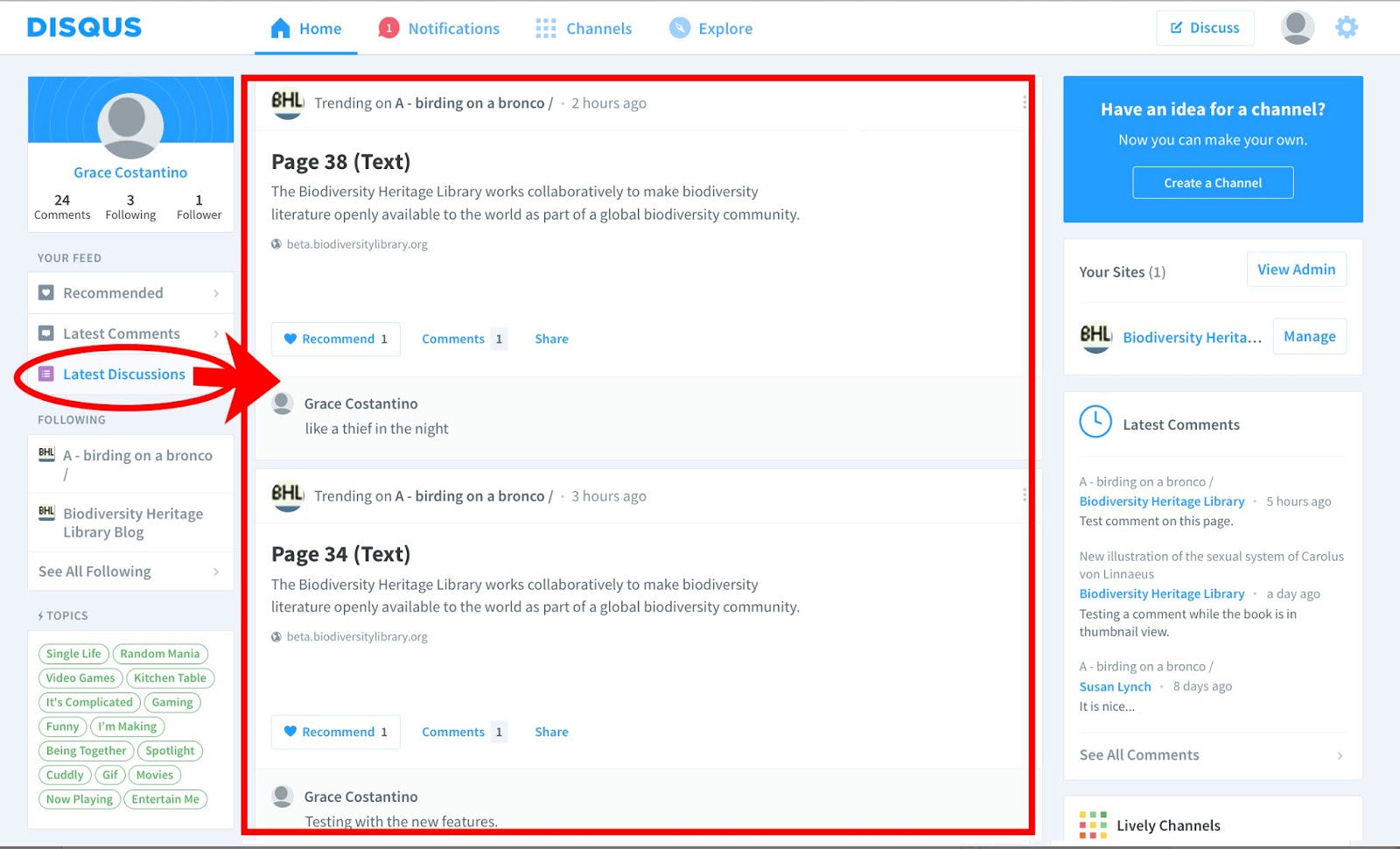
Once you follow BHL on Disqus, you will receive notification of any new comments added to any book in BHL via the “Recommended” feed on your Disqus homepage. If you want to receive notification of new comments added to a particular book in BHL, simply “Follow” that book’s forum on Disqus. To do this, click on the “Community” link in the comment window for the book you want to receive notifications about. This will take you to that book’s forum on Disqus. Click on the “Follow” button in the forum’s header. You will then receive notification of new comments added to that book in the “Latest Discussions” feed on your Disqus homepage.
Click on the “Community” link for the book you want to receive notifications about.
Clicking “Community” will take you to the book’s Forum in Disqus. Click on “Follow” to follow the book and receive notification of new comments added to that book.
Once you follow a book’s forum, you will receive notification of new comments added to that book in the “Latest Discussions” tab on your Disqus homepage.